You're in. This is the other half of the Focus Protocol — the part the settings menus hide from you. Set aside twenty minutes and do it once; done properly, it holds. The screenshots are my own devices. Work top to bottom: Focus, then Screen Time, then the passcode that locks it all in, then the Mac. At the foot you'll find the Entrepreneur Loop as a one-page printable.
Part 2The Controlset — set it up
This is not one feature with an on-off switch. It is a stack of four layers, and set up together they do everything that sixty-dollar gadget promises, for nothing, with you holding the keys. None of it is complicated. The genius of it is how simple it becomes once someone shows you the order.
Layer one: Focus
Start by separating two things that get treated as the same. Do Not Disturb is a blunt instrument. It silences everything, which is exactly why you stopped trusting it — the one call that mattered got buried with the noise, so you switched it off and left it off. Focus is a different tool. It is a context you define: who gets through, which apps may speak, when it runs, where it runs, and what your screen even looks like while it is on.
The part you have probably never set up is the newest. On a device that supports Apple Intelligence you will find a Focus called Reduce Interruptions, and inside your Work Focus a switch named Intelligent Breakthrough and Silencing. This is the device making a judgement call for you — holding back the noise while letting genuinely important things through. It is the closest thing you own to a gatekeeper with judgement, and it sat there unused while you were overriding Do Not Disturb out of frustration.
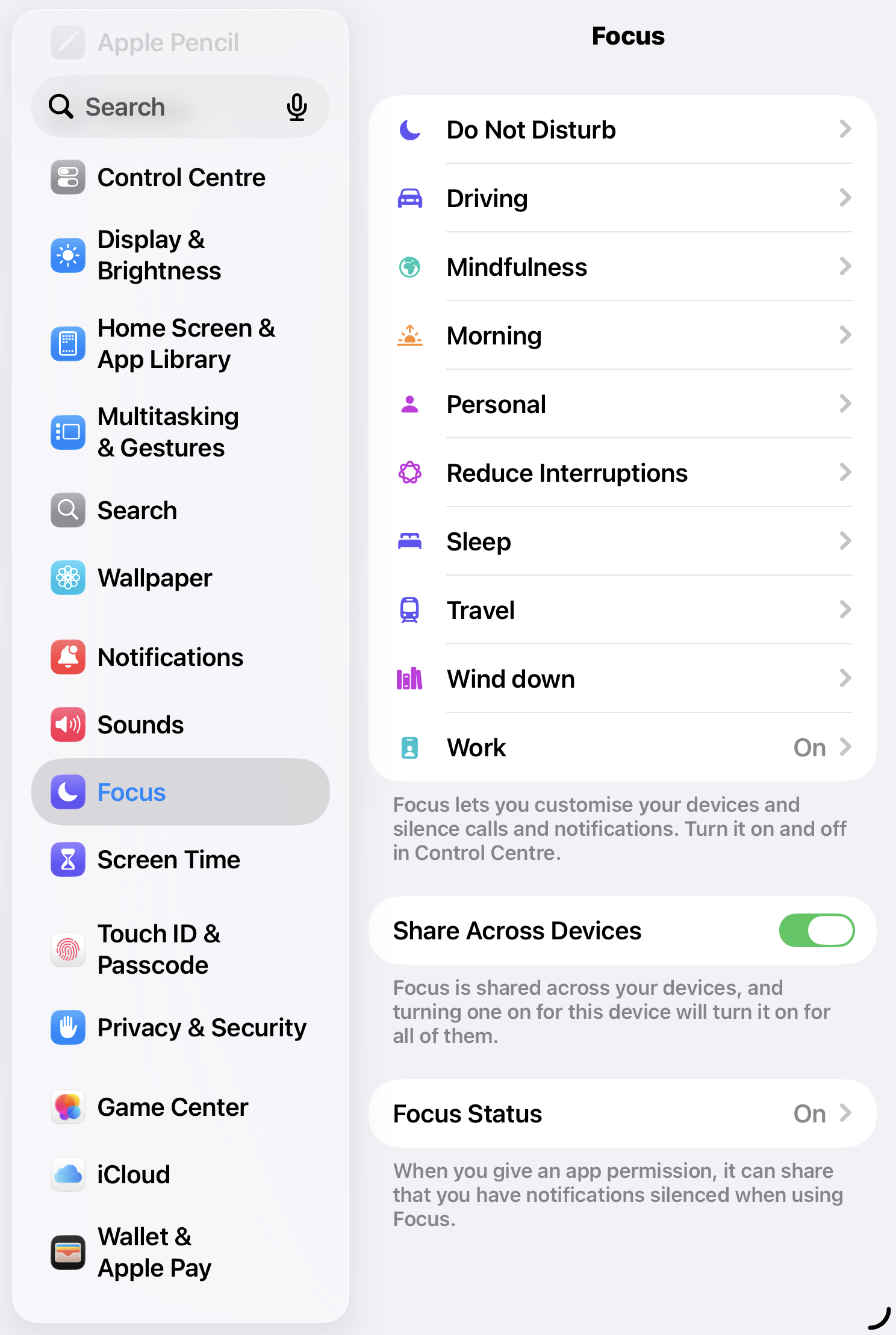
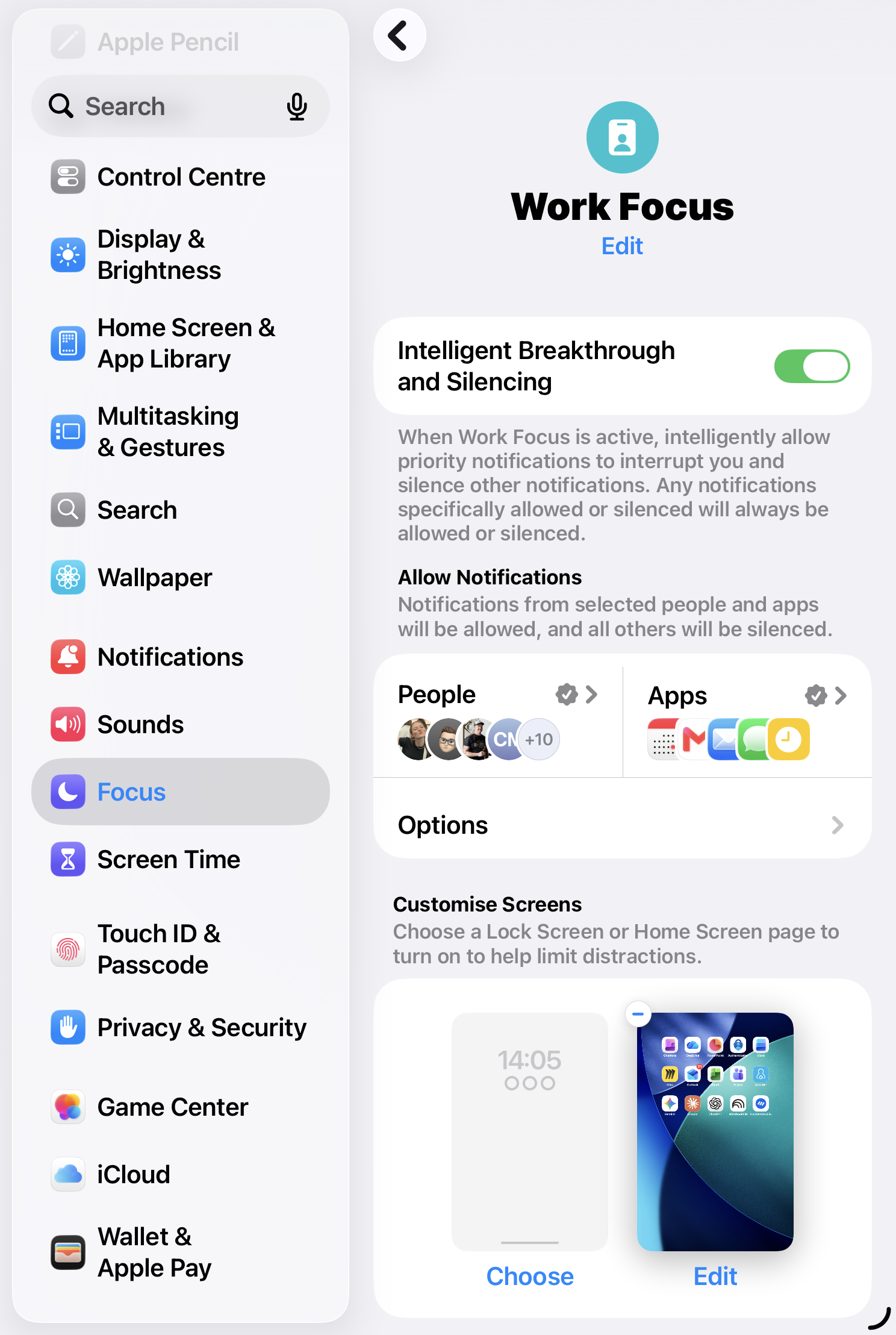
The setup that earns its keep looks like this:
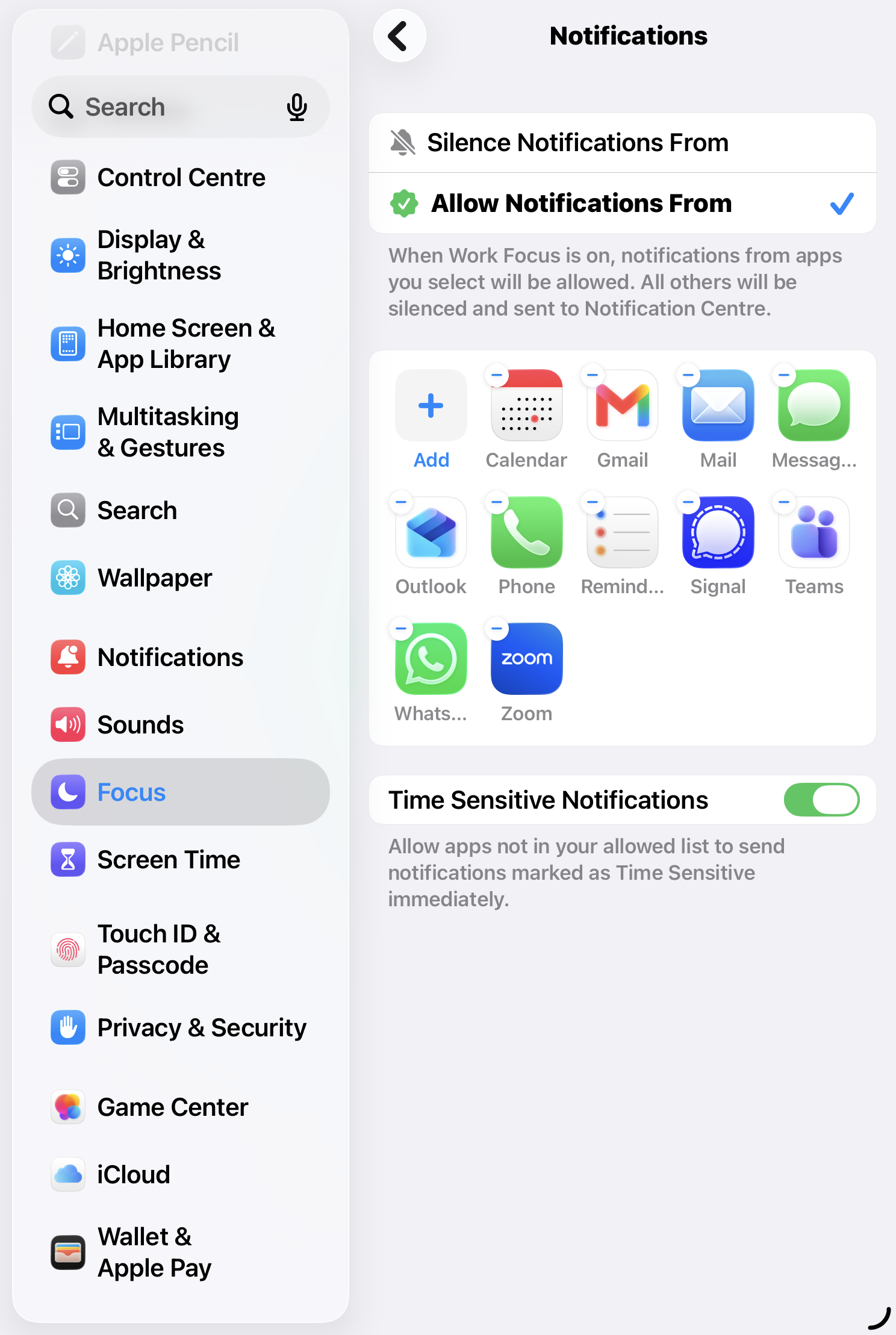
- Build a Work, or Deep Work, Focus and allow-list only the few people and apps that genuinely cannot wait. Not the ones that feel urgent. The ones that are. For most entrepreneurs that is a partner, two or three direct reports, and the calendar. The rest waits.
- Schedule it, or let Smart Activation arm it, so it does not depend on you remembering at nine in the morning. Your own iPad is already set to weekdays, nine to five. Tie it to a calendar block if you would rather.
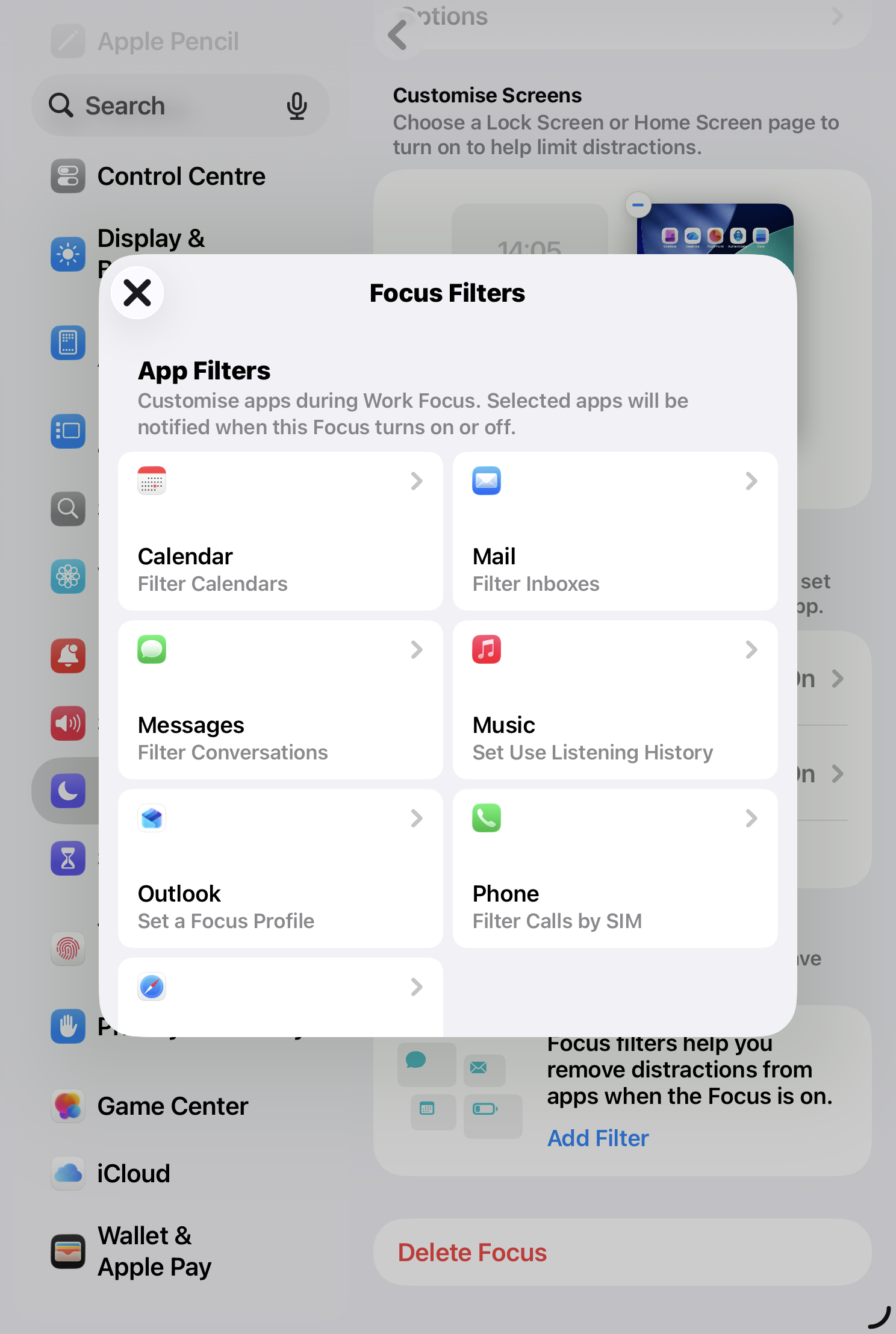
- Set a Focus Filter so the apps you do allow show you less — Mail showing one account instead of four, Safari opening your work tab group rather than yesterday's rabbit holes.
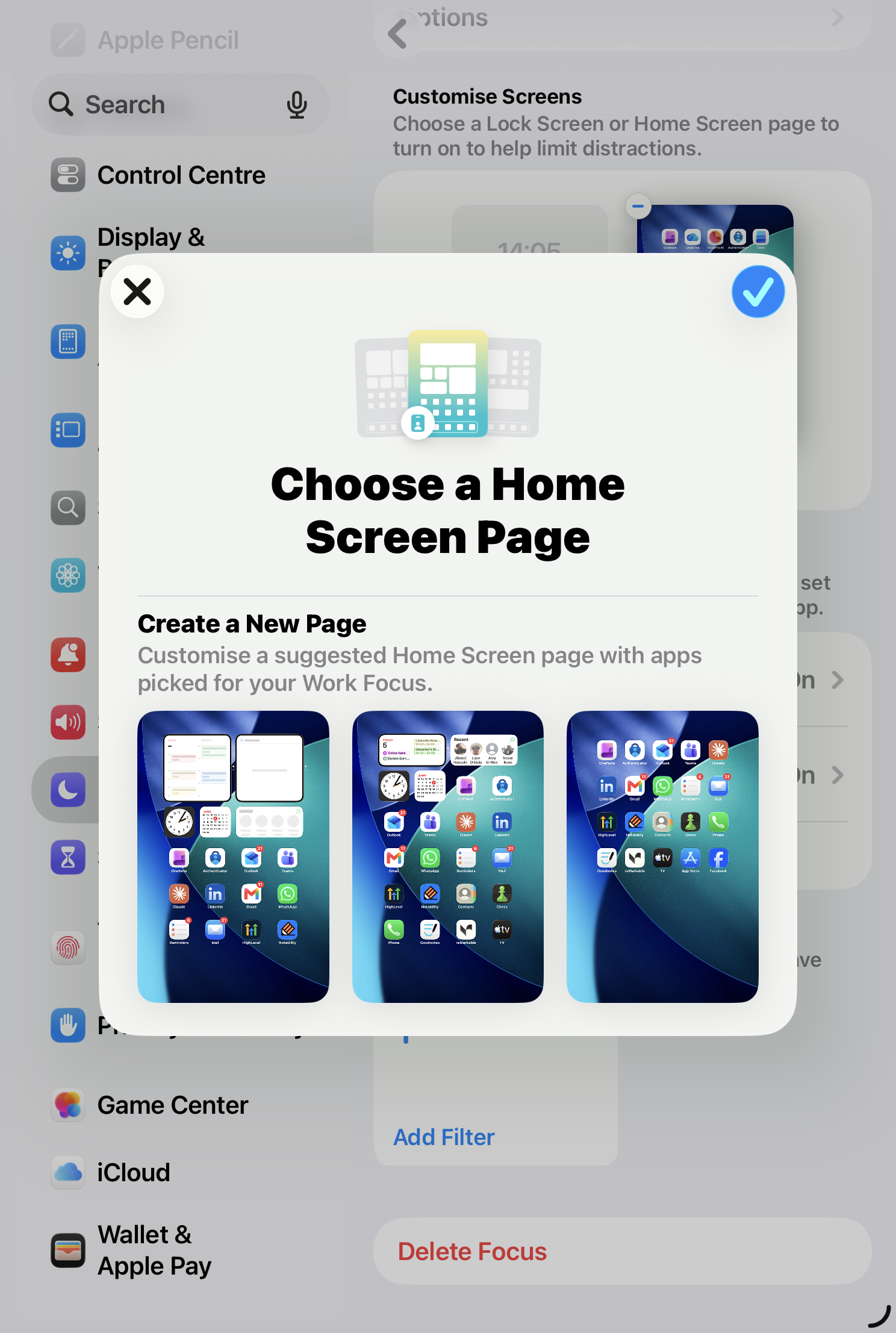
- Pair it with a stripped-back Home Screen that carries only the tools of deep work. This is the move that gets missed. When the Focus turns on, the whole environment changes, not just the sound. The apps that pull at you are no longer even in front of you.
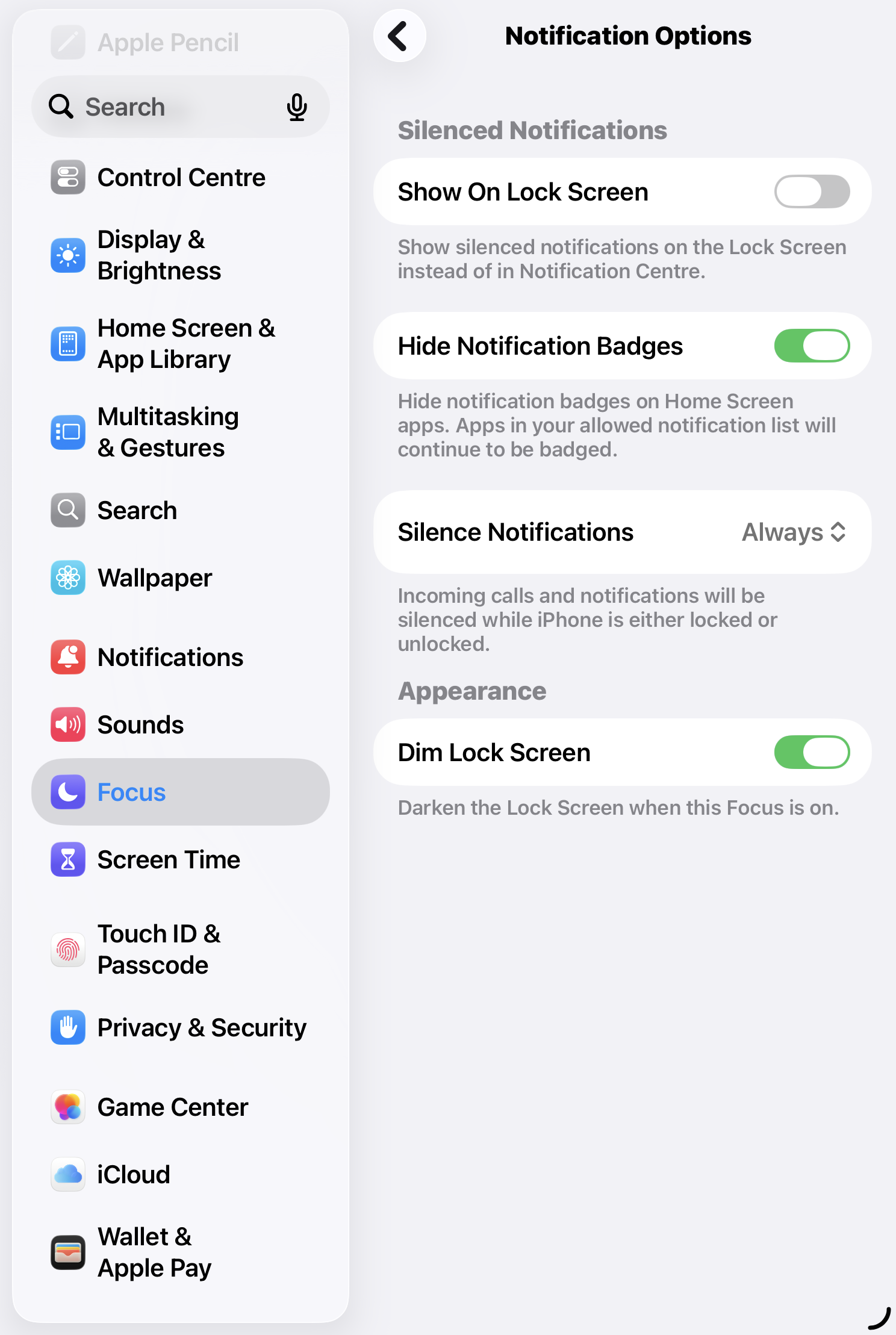
- Turn on the options that kill the visual itch: hide the notification badges, dim the Lock Screen. The red dot is a hook. Take away the hook.
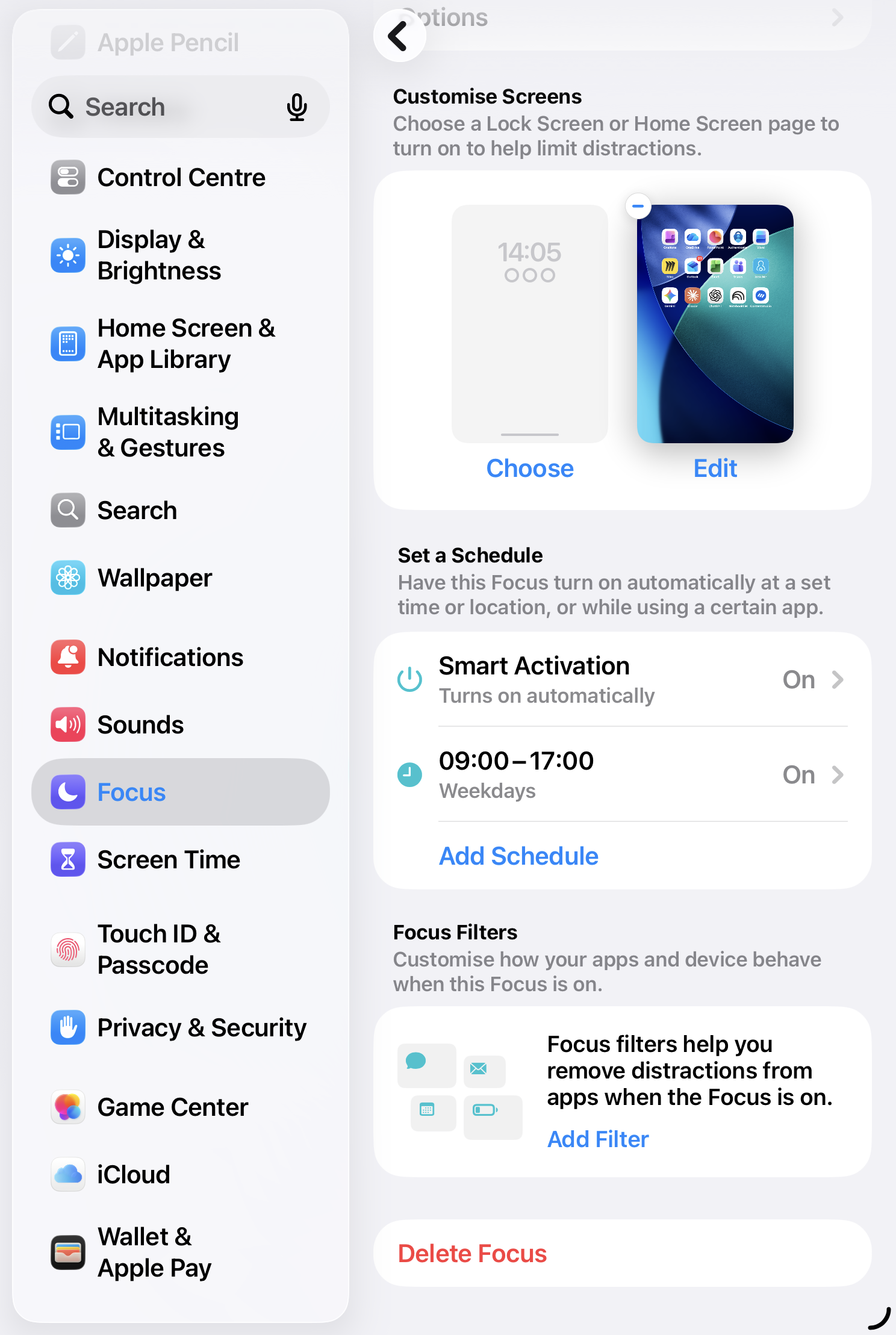
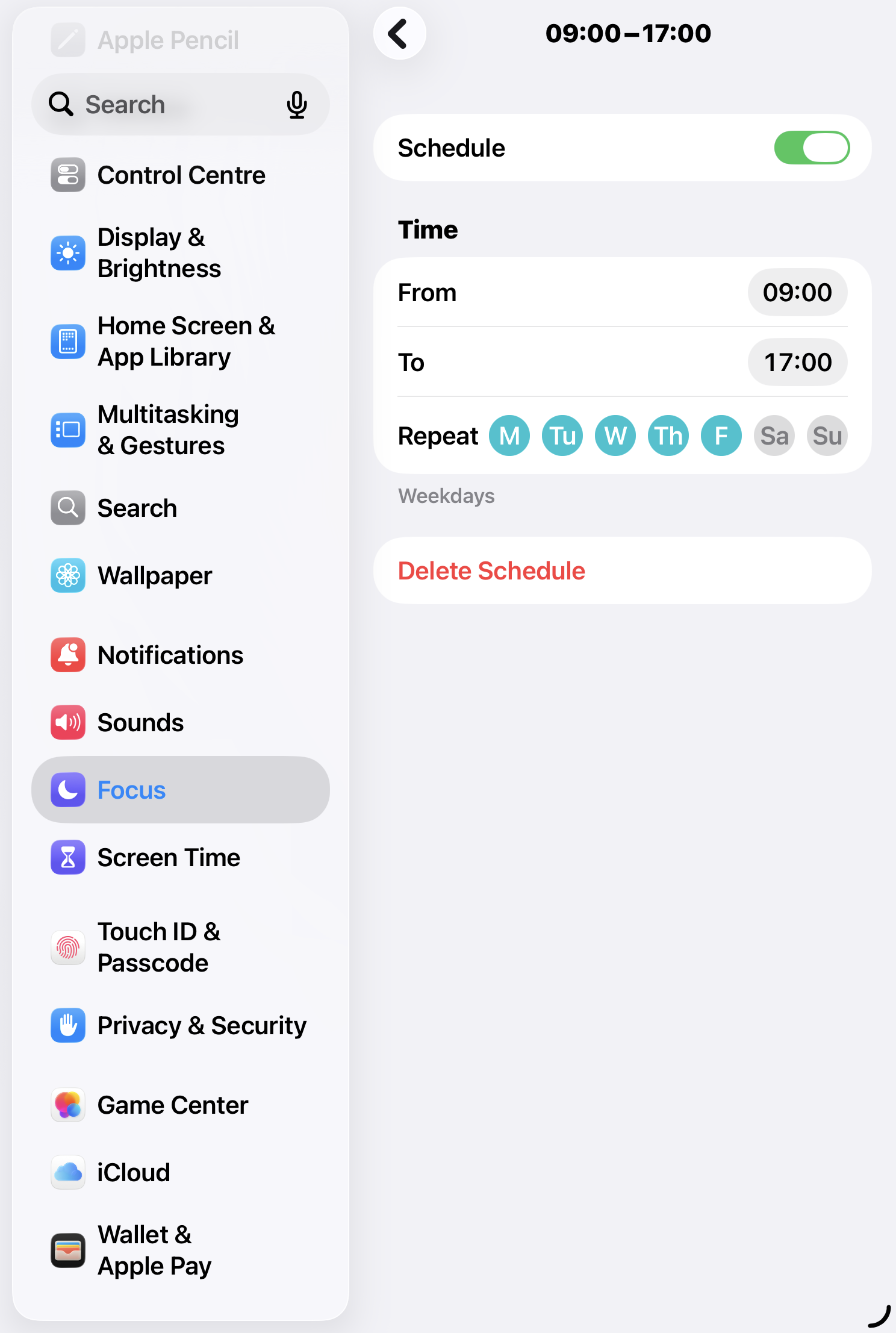
And to settle the fear that stops people committing to any of this: it is not going dark. Your allow-list, plus alerts marked Time Sensitive, means the genuinely urgent still reaches you. You are not unreachable. You have simply become deliberate about who reaches you.
Layer two: Screen Time
Focus governs the moment. Screen Time governs the budget. Different jobs, and you want both.
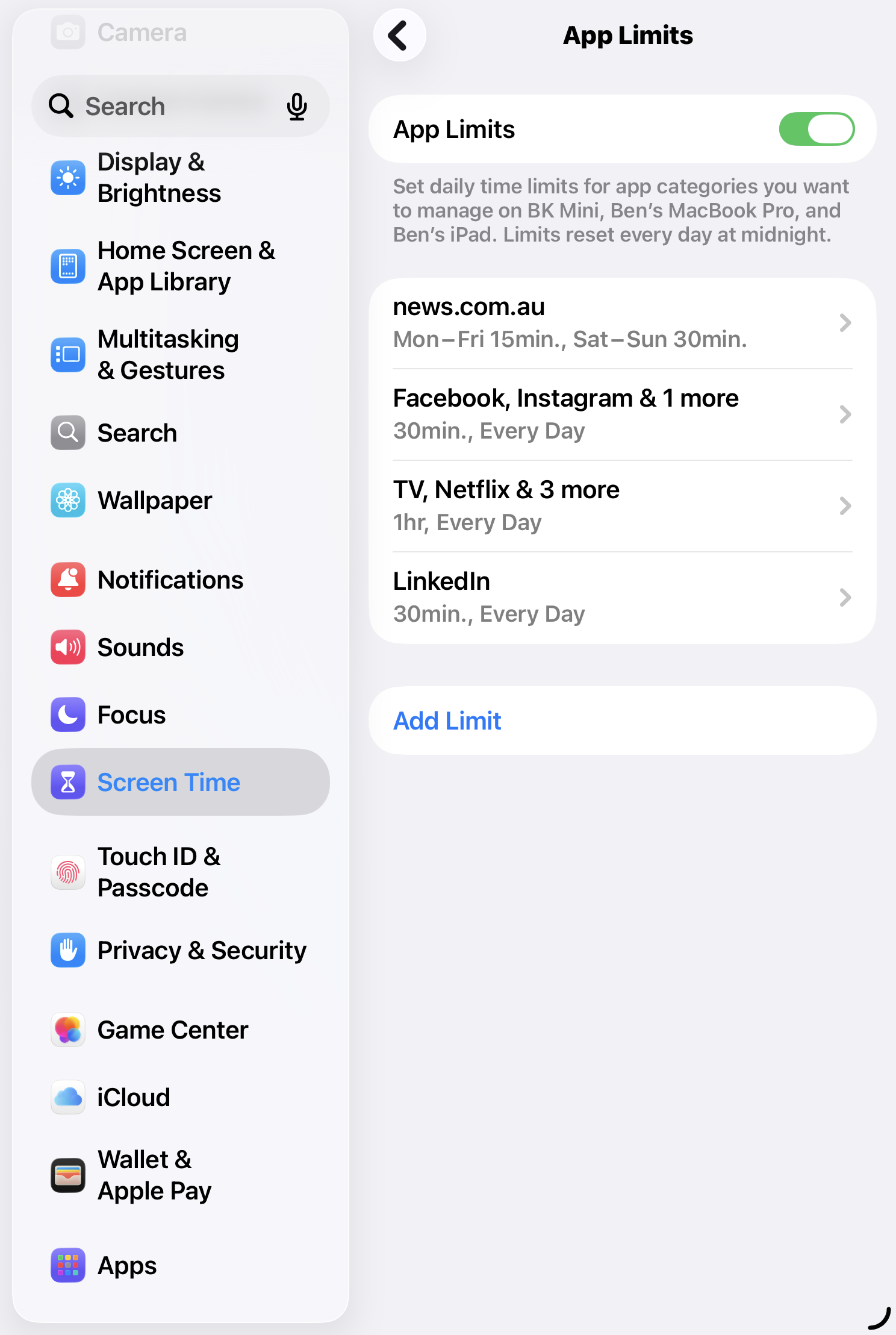
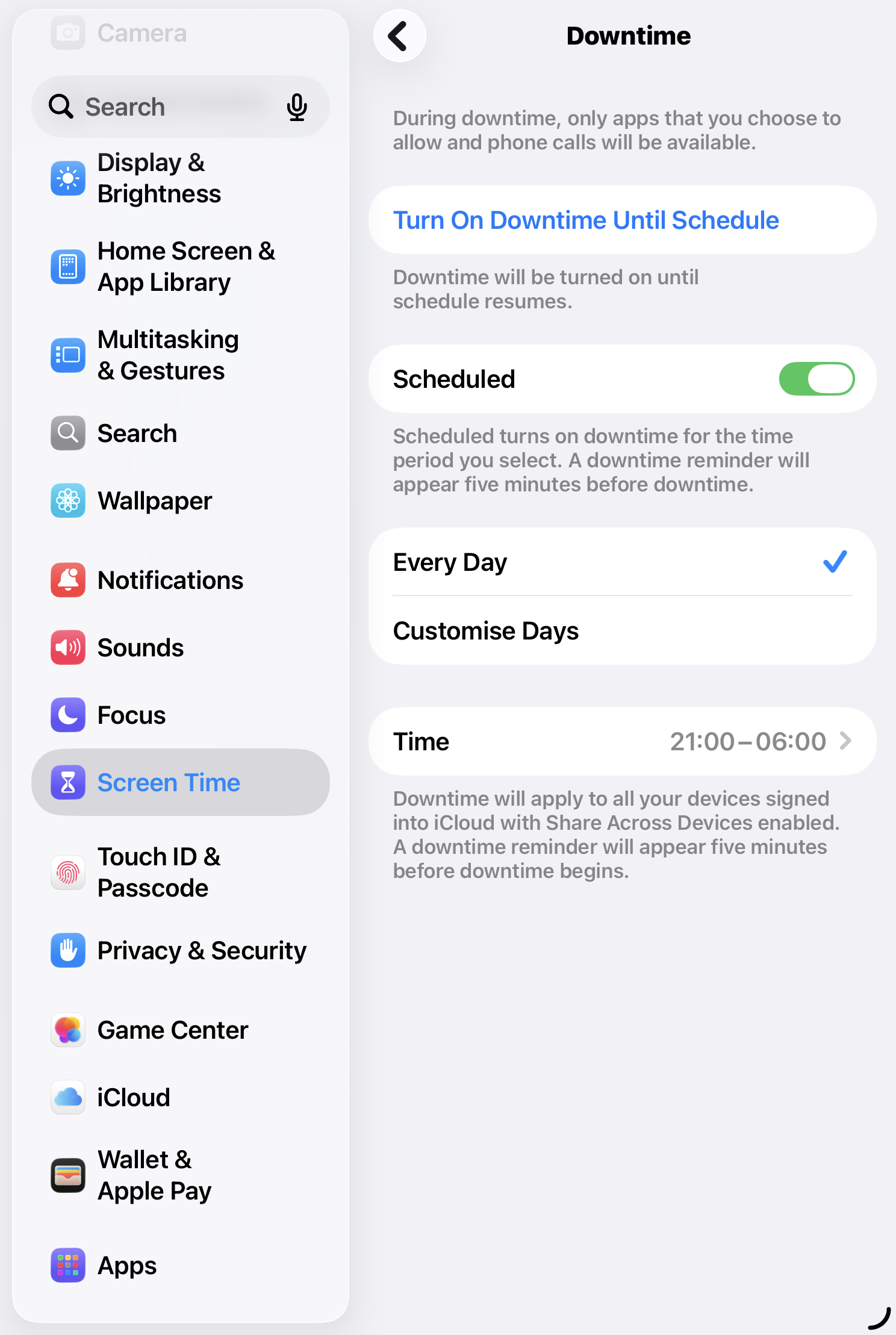
In Settings, under Screen Time, two controls do most of the work. App Limits put a daily ceiling on the genuine time-sinks — the socials, the news feed, whatever your own usage report tells you is quietly eating the hours — and with Block at End of Limit switched on, that ceiling actually holds. Downtime walls off whole stretches of the day, leaving only the apps you have allowed and the phone itself alive. Anything you truly need stays reachable through the Always Allowed list.
This is the layer that decides how much of your life a given app is permitted before you are in the moment and tempted to negotiate with yourself.
Layer three: the passcode
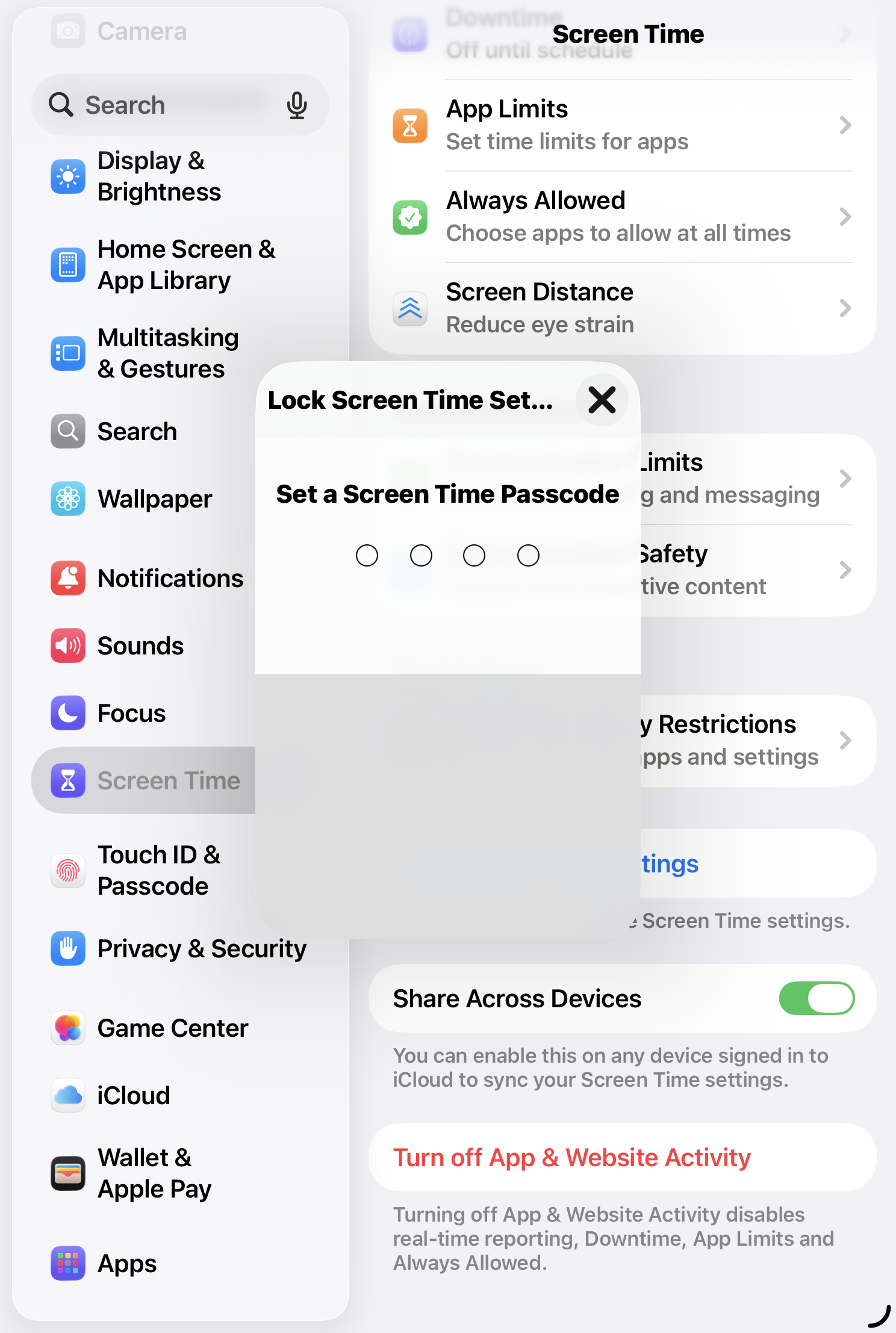
Now the step that makes every limit above it actually hold, and it is the one left out most often. Set a Screen Time passcode. (Settings, then Screen Time, then Change Screen Time Passcode.) It is separate from the code that unlocks your phone, and its single job is to lock the limits themselves, so a tired version of you at nine at night cannot simply tap them away. Without it, every boundary you set is a polite suggestion you will overrule the moment it inconveniences you. With it, overruling costs you the passcode — and that pause is the entire point.
This is the deliberate friction, and it is yours to design. One of the executives I coach took it further than most. He knew his own habit of overriding himself, so he had his wife set the passcode and keep it. He cannot change his own limits on a whim, because the code is not his to enter. People hear that and assume weakness. What it shows is the opposite kind of strength: a man who named the thing that trips him and built the rail before he reached it. It is Odysseus ordering the crew to lash him to the mast and ignore his protests, because he knew precisely what the song would do to him. The agency is in the choosing.
Layer four: the other screen
The phone is only half the battlefield. Your deep work happens at a laptop, with notifications firing six inches from the document you are trying to think your way into. Two moves close that gap.
If you work on a Mac, the Focus you just built travels with you. Switch on your Work Focus and it follows you across iPhone, iPad and Mac at once, and you can still allow an app on one device while silencing it on another. Set it once, govern everywhere.
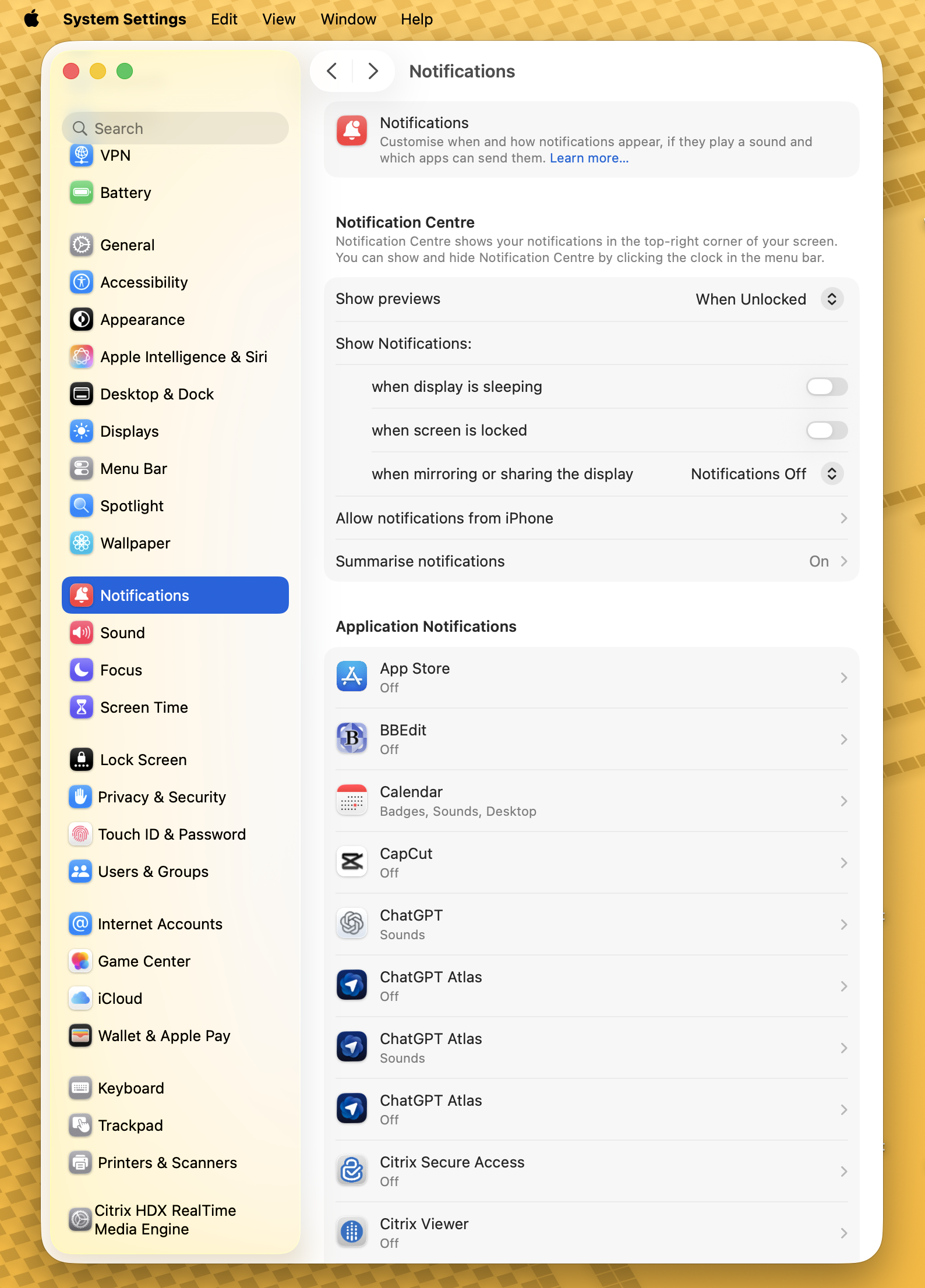
The second move is the one most people overlook. On a Mac, the fastest path to quiet is the top-right corner of your screen — click the Control Centre, find Do Not Disturb, and switch it on. If your deep work runs on a regular schedule, System Settings → Notifications lets you set it to activate automatically; Smart Activation is available here too, just as it is on your phone. The setup that earns its keep long-term, though, goes a step further. Build a dedicated Deep Work Focus on your Mac. Set it to mirror the tight restrictions of Do Not Disturb, then add the exceptions your situation actually calls for — calls from specific contacts, or whatever criteria matter for how you work. What you end up with is a Focus you can leave running without the nagging worry that something genuinely urgent will go dark. The discipline, not the tool, becomes the variable. That is the whole fix. It works for the same reason the rest of the guide works — the interruption you remove before it arrives never costs you the twenty-three minutes waiting on the other side of it.
Part 3Run the Entrepreneur Loop
The controlset is your supporting effort — good, necessary, and not the point. You are the main effort. The discipline is meant to run the controls, never the other way around. So set the four layers up properly, lean on them hard at the start, and use them as scaffolding while the real thing is built: an entrepreneur who no longer has to be saved from himself a dozen times a day.
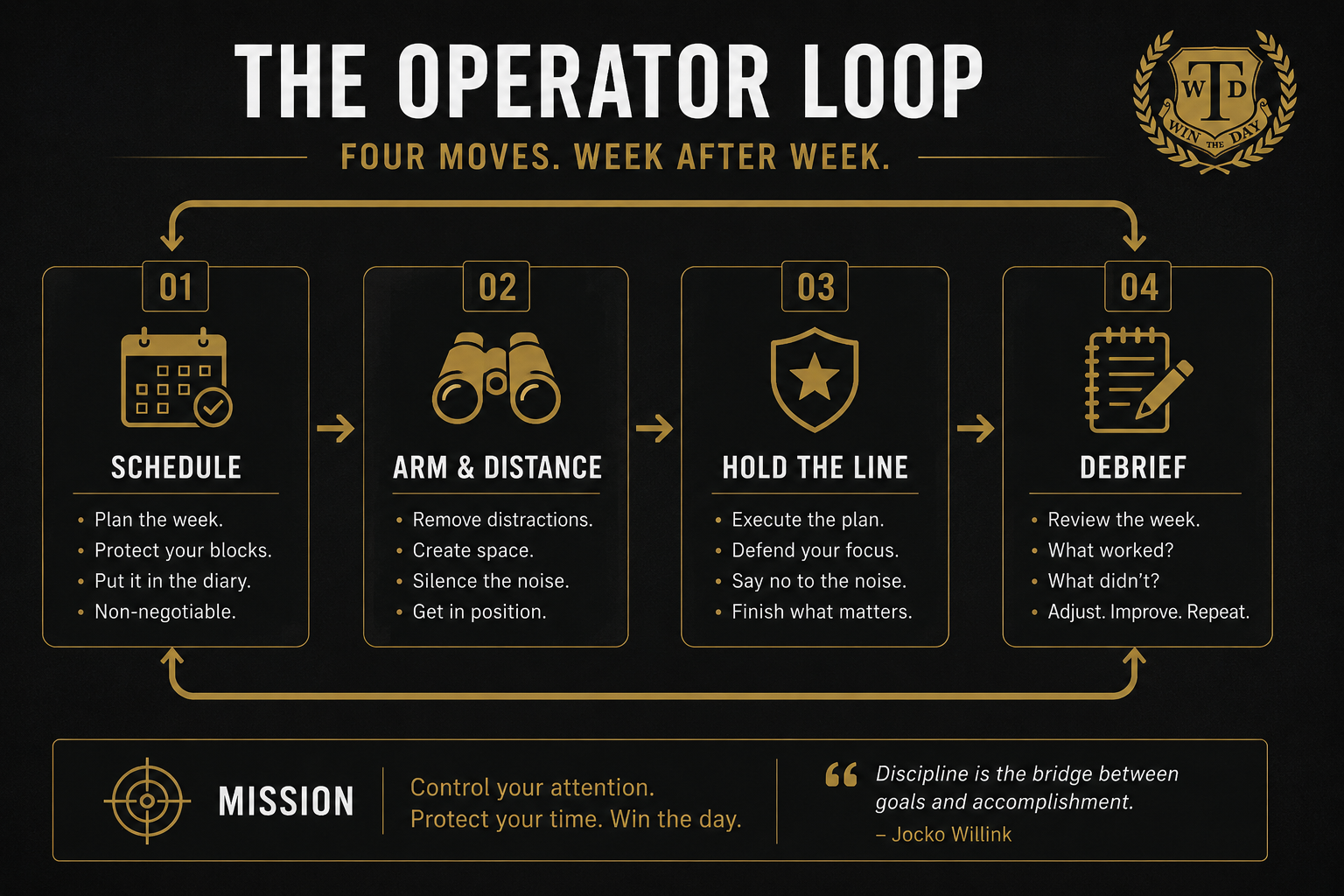
The weekly muscle is the Entrepreneur Loop. Print the page below and run it every week — the controlset protects each block, and this is what creates the block to begin with.
The Entrepreneur Loop
- Schedule. Once a week, before anything else gets in, schedule your deep work into protected blocks. Treat each like a meeting with your most important client.
- Arm & distance. Before each block, arm the controlset and put the phone out of arm's reach. The 44% does not fight fair — do not leave the temptation within reach and call resisting it willpower.
- Hold the line. When the urge to check arrives mid-block, and it will, let the boundary hold instead of reaching over to override it. That one decision, repeated, is the entire muscle.
- Debrief. At the end of the week, take five honest minutes. Did I protect the blocks or trade them away? Where did I override myself? Adjust, and run it again.
The tools that keep it turning
Steps 1 and 4 are a weekly review; step 2's daily "arm and defend" is a daily book-end. We built both as free tools — no login, no app to install. They email you your copy.
That last step — the debrief — is the one that compounds. It is the quiet difference between a person who keeps buying productivity tools and a person who is slowly becoming harder to interrupt. The settings will get you to the door. Walking through it is the entrepreneur's work, and it is yours.
— Captain
P.S. The weekly rhythm that keeps those blocks protected is the thing I work through, every week, in the Win the Day Weekly. If you want the structure that makes the discipline repeatable — the whole horizon, your goals broken down, and the weekly & daily review built in — that is MAP Matrix, and it is where it lives.